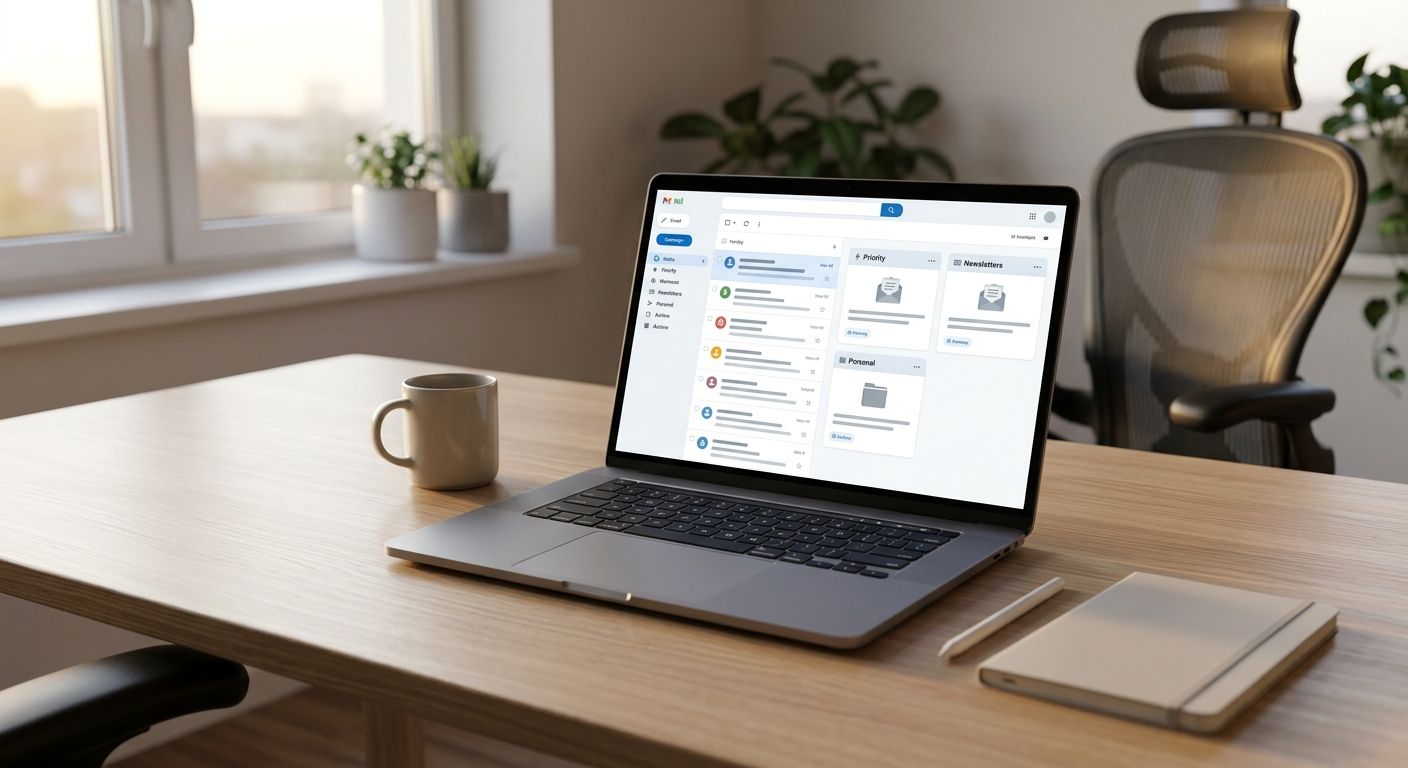
You are checking a Gmail inbox that shouldn't need checking — same three types of emails, same manual sort, same 20 minutes lost before you've done any real work. A gmail inbox automation workflow replaces that sort with rules and AI classification that label, draft, and route messages before you open the tab. Instead of manually triaging every message by hand, you set up filters and an AI layer once, and the inbox arrives pre-sorted every morning of 2026.
- A gmail inbox automation workflow combines native Gmail filters with an AI classification layer to auto-label, draft, and route messages.
- Set drafts to auto-generate but never auto-send — SpiAI's build pattern keeps a human approval step on every reply.
- Most small business inboxes need 4-6 labels and one AI trigger to cut manual triage time sharply.
- Budget one afternoon for setup; the failure mode is over-broad filter conditions, not the AI layer.
Why this matters
Inbox triage is the highest-frequency, lowest-value task most operators do in 2026. It's not hard — it's relentless. Every unread email forces a judgment call: respond now, forward it, ignore it, or flag it for later. That judgment call, repeated dozens of times a day, is exactly the kind of pattern an AI agent can learn and execute without you in the loop.
The workflow below uses native Gmail tools plus a lightweight AI layer, so you can build it yourself this week. Where it hits a ceiling — multi-inbox routing, CRM sync, document extraction — that's the point where a built-for-you agent from SpiAI takes over the parts that don't fit inside Gmail's filter engine.
Before you start
- Gmail account with admin access to Settings. You need the ability to create filters and labels; a shared or delegated inbox works, but permissions vary by workspace admin.
- An AI API key or automation platform account (Zapier, Make, or a Google Apps Script project) if you're adding the classification layer beyond basic keyword filters.
- The gotcha: Gmail filters all evaluate against every incoming message, and a broad condition like "has the words: invoice" will grab mail you meant for a narrower rule. Write your most specific conditions first, or you'll spend week two debugging why nothing lands where you expect.
Set up your Gmail labels
- Open Settings (gear icon, then See all settings) and go to the Labels tab.
- Click Create new label and add four to six categories that match how you actually triage — for example: To Respond, Waiting on Reply, FYI Only, Low Priority, Needs Approval.
- Keep labels flat, not nested, for the first version. Nested labels complicate the filter logic you'll build next.
Expected result: your label sidebar shows the new categories, empty and ready for filter assignment.
Configure your filter triggers
- Go to Settings > Filters and Blocked Addresses and click Create a new filter.
- Define conditions using From, Subject, or Has the words — start narrow (a specific sender domain, an exact subject phrase) rather than broad keyword matches.
- Under choose what happens, select Apply the label and pick the matching category from the previous step. Add Skip the Inbox (Archive it) for anything in your Low Priority bucket.
- Repeat for each category, and check each new filter against the ones you already have so two rules don't compete for the same mail.
Expected result: test emails sent to yourself land in the correct label within seconds, and low-priority mail skips the inbox entirely.
Configure the AI classification layer
Native filters handle exact matches. They can't tell the difference between a client asking for a status update and a client asking for a refund — both might contain the word "update." That's where an AI layer sits on top.
- Connect Gmail to an automation platform (Zapier, Make, or Apps Script with an AI API) using a New Email trigger scoped to your inbox.
- Pass the email subject and body into a classification step that assigns intent categories matching your Gmail labels.
- Set the action to apply label + create draft reply for categories where a templated response makes sense: scheduling requests, order status, common questions.
- Never set the action to auto-send. Route AI-drafted replies to the Drafts folder so a human reviews and sends. This single setting is what separates a useful triage layer from a liability.
Expected result: incoming mail gets labeled by intent, not just keyword match, and routine categories arrive with a draft reply already waiting for your approval.
Variant: trigger CRM or task updates from inbox activity
The same trigger that classifies an email can fire a second action. If a message matches Waiting on Reply or a new-lead category, route a parallel action that logs the sender and subject into your CRM or task tool alongside the Gmail label. One trigger, two outputs — inbox triage becomes lead intake without a second system to check. This is the pattern SpiAI builds when a client's real bottleneck is CRM data entry rather than reply drafting; the guide to CRM automation agents for small business covers that side of the setup in more depth.
Troubleshooting
- Filters aren't catching the right emails. Check for a broader rule matching the same message first — Gmail applies every filter whose conditions match, so overlapping conditions produce surprising results.
- AI drafts sound generic or off-tone. Feed the classification step three to five examples of your actual past replies per category. A cold-start prompt with no examples produces flat, templated language.
- Duplicate labels on the same thread. This happens when both a native filter and the AI layer label independently. Pick one system as the source of truth per category, not both.
- Drafts pile up unreviewed. If nobody opens the Drafts folder daily, the automation adds a chore instead of removing one. Assign an owner to the review step or the workflow stalls.
- Rate limits or slowdowns on high-volume days. Batch processing every 15 minutes instead of real-time usually resolves this without losing meaningful speed.
“AI drafts, your team approves. Never auto-send is the rule that keeps inbox automation safe.”
Customize your workflow
Once the base triage loop works, most teams expand in one of two directions: document intake (invoices, contracts, attachments that need extraction rather than labeling) or scheduling logic that routes meeting requests straight to a calendar tool. If document handling is the next bottleneck, the rundown of document processing automation tools covers what to add on top of this base setup in 2026.
If the DIY version starts costing more upkeep than it saves, that's the sign the build needs to move off native Gmail tools. SpiAI builds custom inbox triage agents for small and medium businesses that want classification, drafting, and routing handled without a stack of subscriptions stitched together by hand. Scoping and pricing for that kind of build are broken down in the guide to AI automation agent cost for a small business.
Get your inbox workflow assessed
SpiAI scopes a fixed-price triage build with a defined delivery date.
FAQ
What is a gmail inbox automation workflow?
A gmail inbox automation workflow is a set of filters and AI rules that label, sort, and draft replies to incoming email automatically. You review a pre-sorted inbox instead of triaging every message by hand.
Can Gmail filters alone handle inbox triage?
Gmail filters handle exact keyword and sender matches well but cannot judge intent, so a filter cannot separate a status request from a complaint. Pair filters with an AI classification layer for anything nuanced.
Is it safe to let AI auto-send email replies?
Auto-sending is risky for anything client-facing in 2026. Route AI drafts to the Drafts folder for human approval instead, which keeps tone and accuracy in your control while still cutting drafting time.
How long does it take to set up gmail inbox automation?
A basic filter-and-label setup takes under an hour. Adding an AI classification and drafting layer typically takes an afternoon, depending on how many categories and integrations you connect.
What is the difference between Gmail filters and an AI agent for inbox management?
Filters match exact text patterns, while an AI agent reads context and intent and routes a message correctly even when wording varies. Most workflows that hold up use both together.
Does SpiAI build custom inbox automation for small businesses?
Yes. SpiAI runs AI workflow assessments and builds custom agents including inbox triage, CRM updates, and document intake for small and medium businesses.
How many labels should I use for inbox triage?
Four to six labels covers most small business inboxes without becoming a maintenance burden. More than eight categories usually means the taxonomy needs simplifying, not the automation.
Do I need a developer to build this workflow?
No developer is needed for the filter and label layer, which is entirely built in Gmail settings. The AI classification step needs either a no-code automation platform or a scripted setup.
One last thing
The part of this workflow that fails most often is not the AI. It is overlapping filter conditions. Teams write a broad "has the words: order" rule and a narrow "from: specific-vendor" rule, both match the same email, and the labeling looks random. Write conditions narrow, test each one with a live email before adding the next, and the rest of the 2026 build holds together.